

Download Keka – Free Multiformat Compressor for macOS
Overview
Keka is a lightweight, free, and open‑source archiving tool built especially for macOS. Designed with simplicity in mind, Keka lets you compress files into popular formats such as 7z, ZIP, TAR, GZIP, and BZIP2, while also extracting a broad range of archive types—including RAR, LZMA, ISO, CAB, and the legacy ACE (PPC) format. The app lives in your Dock, turning compression and decompression into a drag‑and‑drop experience that feels native to the Mac environment. Whether you’re a student juggling research papers, a developer handling source bundles, or a casual user who just wants to share a folder, Keka offers a secure, fast, and no‑cost solution that integrates smoothly with macOS’s look and feel.
Compatibility
Keka supports macOS 10.6 (Snow Leopard) and newer, including the latest Ventura and Sonoma releases. The App Store version is compiled for the modern Apple Silicon architecture (ARM) as well as Intel, guaranteeing optimal performance on both M‑series and legacy Macs.
Pros and Cons
- Pros:
- Completely free with optional App Store purchase for convenience.
- Supports a wide array of compression and extraction formats.
- Drag‑and‑drop interface eliminates the need for complex dialogs.
- Ability to split large archives into custom‑size chunks.
- Native integration with macOS security (Gatekeeper, notarization).
- Cons:
- No built‑in archive preview – you must extract to view contents.
- Context‑menu integration requires a separate optional add‑on for older macOS versions.
- Advanced encryption options are limited compared to some commercial rivals.
Key Features of Keka
- Multiformat Compression: Create archives in 7z (high compression), ZIP (universal), TAR, GZIP, and BZIP2.
- Broad Extraction Support: Open RAR, 7z, LZMA, ISO, CAB, ACE (PPC), and many other formats without additional plugins.
- Drag‑and‑Drop Simplicity: Drop files onto the Dock icon or the application window to start compression or extraction instantly.
- Archive Splitting: Split large archives into user‑defined chunk sizes, making it easy to store on limited media or upload to services with size caps.
- Encryption & Password Protection: Secure 7z archives with AES‑256 encryption and password protection.
- Custom Compression Settings: Fine‑tune dictionary size, compression level, and solid block size for optimal results.
- Integration with Finder: Optional Finder extension adds “Compress with Keka” to the right‑click context menu (requires separate download for macOS 10.6–10.8).
- Lightweight & Fast: The app’s small footprint (<5 MB) and native code ensure quick processing, even on older hardware.
Why Keka Stands Out
While many Mac archivers charge a premium for advanced features, Keka delivers the core capabilities that most users need without a price tag. Its open‑source nature means the community can audit the code for security, and frequent updates keep it compatible with the latest macOS releases. The combination of drag‑and‑drop convenience, solid compression ratios (especially with 7z), and the ability to split archives makes Keka a versatile tool for both everyday tasks and more technical workflows.
Installation, Setup, and Everyday Use
How to Download and Install
- Visit the official Keka website (keka.io) or the Mac App Store.
- Click the “Download” button for the free version. The App Store variant costs a nominal fee but includes automatic updates.
- Open the downloaded
.dmgfile and drag the Keka icon to your/Applicationsfolder. - If you downloaded from the website, you may need to bypass Gatekeeper by right‑clicking the app, selecting “Open,” and confirming you trust the developer.
- Launch Keka. The first run will prompt you to place the icon in the Dock for quick access.
Compressing Files
To create an archive, simply select one or more files/folders in Finder and drag them onto the Keka Dock icon. A dialog appears allowing you to choose the archive format, compression level, and whether to encrypt the file. After confirming, Keka instantly generates the archive in the same directory as the original items.
Extracting Archives
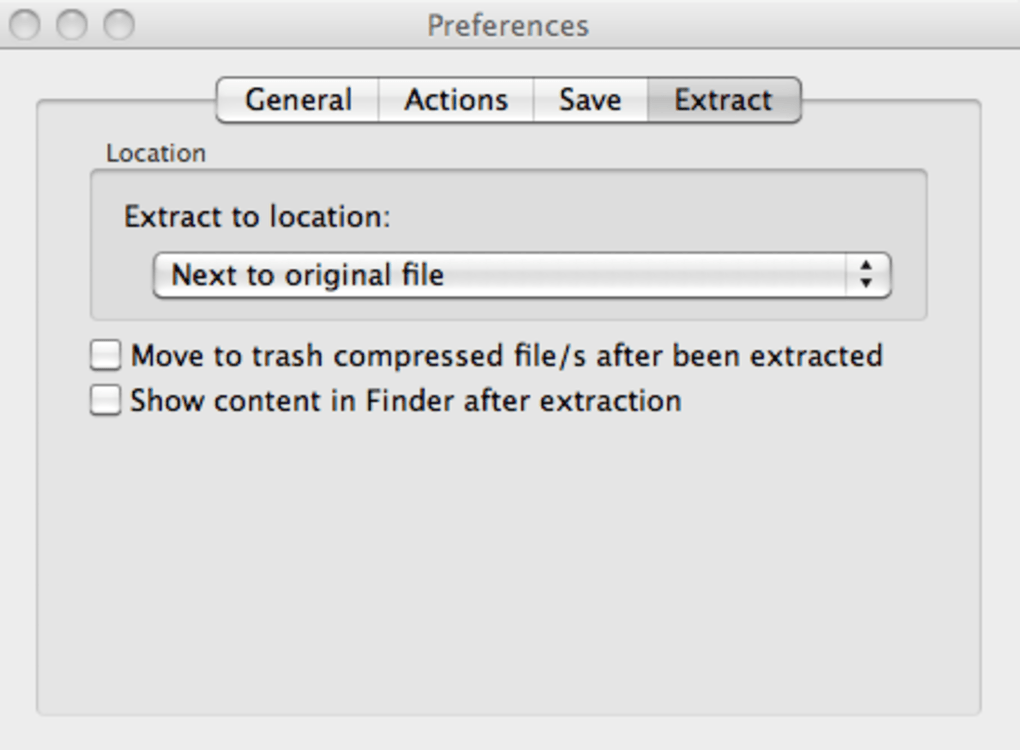
Extraction works the same way: drag any supported archive onto the Keka icon, and the app will unpack its contents to a folder with the same name as the archive. For password‑protected files, Keka will prompt you for the password before proceeding.
Advanced Options
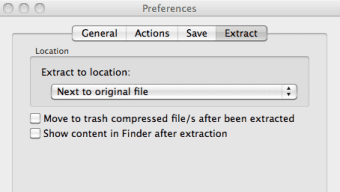
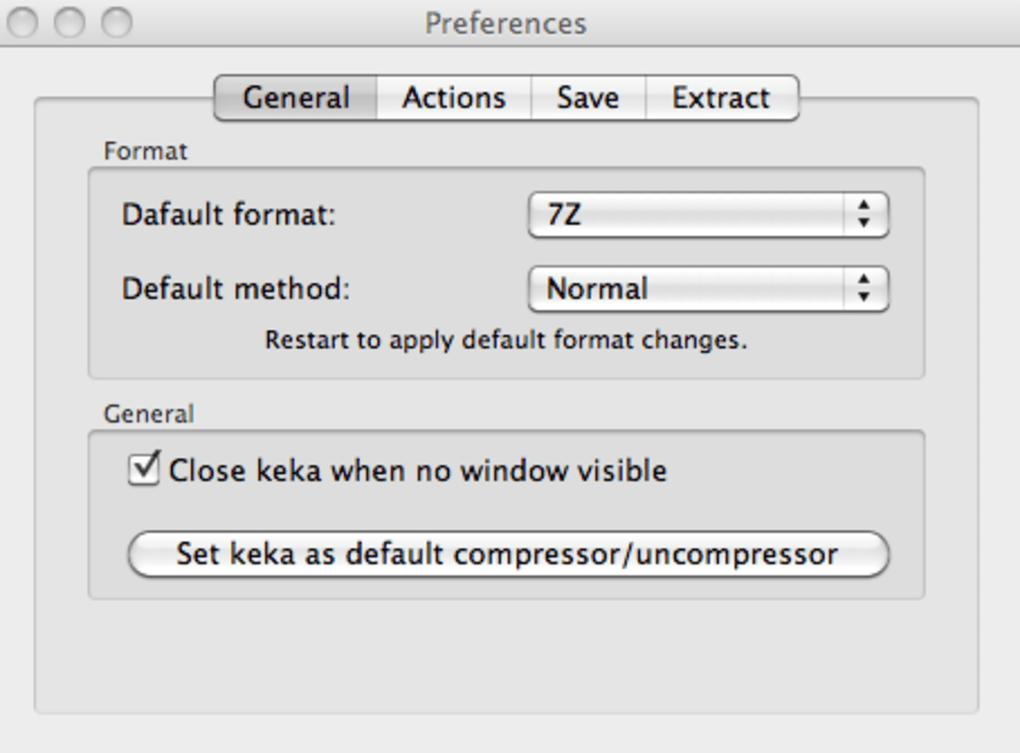
From the main window you can access “Preferences” to set default compression formats, adjust split‑size limits, or enable the optional Finder context‑menu extension. The split‑size feature is particularly handy when preparing large backups for USB drives or cloud services that impose size limits.
Keeping Keka Updated
If you installed via the App Store, updates are handled automatically. Users of the free web version receive a notification within the app when a new version is available; clicking the notification initiates a fresh download. Regular updates address compatibility with new macOS releases and introduce minor performance tweaks.
Frequently Asked Questions
Is Keka truly free or are there hidden costs?
Keka is open‑source and free to download from the official website. The App Store version costs a small fee (around $4.99) only for the convenience of automatic updates and Apple‑signed distribution; the functionality remains identical.
Can Keka handle encrypted RAR archives?
Keka can extract RAR archives, but decryption is limited to RAR 3.x files with standard passwords. For newer RAR5 encryption, you may need a dedicated RAR tool.
Does Keka support archive preview without extracting?
No, Keka does not provide a built‑in preview pane. You must extract the archive (or use Finder’s quick look on the extracted folder) to view its contents.
How do I enable the Finder context‑menu integration?
Download the optional “Keka Service” from the Keka website (compatible with macOS 10.6–10.8). Install the service, then restart Finder. The “Compress with Keka” option will appear when you right‑click a file or folder.
Is Keka safe for handling confidential data?
Yes. Keka’s 7z encryption uses AES‑256, which is industry‑standard for strong security. As an open‑source project, its code can be audited, and macOS notarization adds an extra layer of trust.
Conclusion – Should You Download Keka?
If you need a reliable, free archiving tool that works natively on macOS, Keka is hard to beat. Its drag‑and‑drop workflow makes everyday compression and extraction painless, while support for advanced formats like 7z and split archives offers power‑user flexibility. The occasional lack of preview and limited context‑menu integration are minor trade‑offs compared with the overall speed, security, and zero cost. Whether you install the free web version or purchase the App Store build for automatic updates, Keka delivers a secure, fast, and user‑friendly experience that fits seamlessly into the Mac ecosystem.
Download Keka now and start compressing with confidence.







